iPhone · settings checked against Apple Support
How to make iPhone photos look like film
How to make iPhone photos look like film is two jobs. First, ease off what the camera does by default: a few settings that depend on your model, each linked to Apple's own page. Second, add what film did: grain, lifted blacks, color, darker corners. On iPhone 18 Pro and 18 Pro Max, Apple's Photographic Styles add a Film texture and Grain; every other model needs an app or an editor for the second job. It looks like film. It is not film.
Checked against Apple Support on 9 October 2026
01The problem
Why iPhone photos do not look like film.
Film has grain, a matte black and color that leans one way in the shadows and another in the highlights. A phone makes a clean, even picture.
Per Apple Support, the iPhone camera takes several photos in rapid succession at different exposures and blends them together to bring more highlight and shadow detail. That is the opposite of how film behaves. The full list of what the iPhone does to a photo is on film camera app for iPhone.
02Camera settings
Camera settings to change first.
Each depends on your iPhone model and iOS version, and links to the Apple page it came from. If a switch is missing, your model does not have it.
- 01
Choose a Photographic Style.
Per Apple Support, the style you pick applies automatically to all photos you take. In Camera, open Styles, swipe to preview, and tap Customize to change tone, color and intensity. On iPhone 18 Pro and 18 Pro Max, Apple's Photographic Styles also add a Film texture and a Grain control; every other model needs an app or an editor for grain, and has Tone and Warmth sliders instead. Apple's page does not list lifted blacks or darker corners. To undo a style: Settings, Camera, Photographic Styles, Use Standard.
Which models Supported models only; the Film texture and Grain are for iPhone 18 Pro and iPhone 18 Pro Max. To edit a style later in Photos, Apple says Camera must capture with High Efficiency (Settings, Camera, Formats).
- 02
Turn off Smart HDR, if your model lets you.
Apple says iPhone uses HDR automatically when it is most effective. Where the switch exists: Settings, Camera, turn off Smart HDR, then tap HDR on the camera screen to turn it on or off.
Which models iPhone 11 models, iPhone SE (2nd generation) and iPhone 12 only. Apple's page lists no off switch for other models, so on a newer iPhone leave this alone.
- 03
Turn Live Photo off.
Apple says Live Photo is on by default. In Camera, open the controls, tap Live, and choose Off. It does not change the look. It makes a still a still.
Which models Photo mode. Live Photos are unavailable while ProRAW is on, per Apple.
- 04
Add the 35 mm main lens.
Per Apple Support, the default Main lens is 24 mm. You can add 28 mm and 35 mm: Settings, Camera, Formats, Photo Mode (24 MP selected), then Settings, Camera, Main Camera, Additional Lenses. 35 mm is a common focal length on 35mm film cameras, and it frames less wide than the default.
Which models Supported models. On iPhone Air the default is 26 mm.
- 05
Pick 12 MP or 24 MP.
Settings, Camera, Formats, Photo Mode. Apple does not say resolution changes the look. A lighter file is easier to edit, and grain you add is sized to the pixels you have.
Which models Supported models.
Apple also lists Prioritize Faster Shooting, which modifies how images are processed, plus Lens Correction and Scene Detection. You can turn each off in Settings, Camera. Apple does not say any of them makes a photo look more like film, so judge by eye.
CHECKED AGAINST APPLE SUPPORT ON 9 OCTOBER 2026 · APPLE'S PAGES, MODELS AND SETTINGS CHANGE WITH EACH iOS RELEASE
03Apple ProRAW
Should you shoot ProRAW?
ProRAW is editing room, not a look.
Per Apple Support, ProRAW combines the information of a standard RAW format with iPhone image processing, for more control over exposure, color and white balance. Turn it on in Settings, Camera, Formats, then tap RAW in Camera. Supported models only. Apple does not describe it as adding grain or a color cast. If you edit by hand, the steps are in how to make photos look like film.
04The Photos app
What the Photos app can and cannot do.
Apple's edit page names tone controls as examples. It lists no halation or dust controls.
Apple's edit page names Exposure, Brilliance and Highlights as examples of what you can adjust, and lists no halation or dust controls (read 9 October 2026). You can also copy the edits from one photo and paste them onto a batch. For a photo captured on iPhone 18 Pro or 18 Pro Max, the same page lists Grain when you edit its Photographic Style. CAM135 adds named films, 23 cameras, one dial, and a batch for old photos.
05CAM135 on iPhone
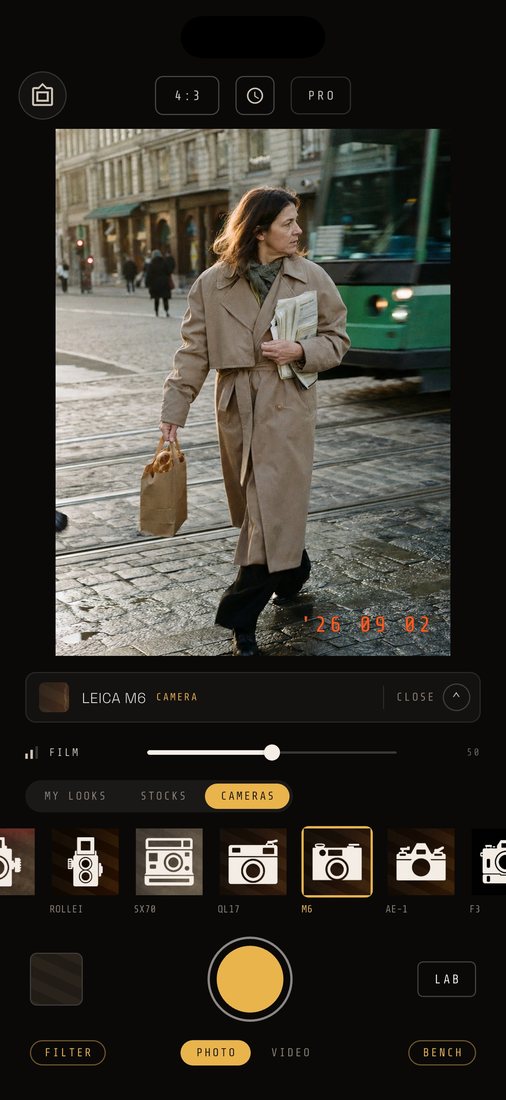
Make iPhone photos look like film with CAM135.
Live in the camera, or printed on photos you already have. Needs iOS 15 or later.
In the camera
The look is written into the photo at the shutter: the film's color look and cast, grain, fog that lifts the blacks, dust and a vignette, scaled by one dial. Photos are written at up to 24 megapixels on newer iPhones. It adds a look on top of what the iPhone made. It does not turn off the iPhone's processing.
The one exception is PRO manual exposure. When you set the exposure by hand and pick a shutter of 1/30 s or slower, the app asks iOS to prioritize speed. Apple's camera framework documents that the default setting can override a manual ISO and shutter in dark scenes to fuse several images, and that speed priority keeps your settings. Those photos are written at 12 megapixels.
On photos you already have
Pick up to 20 still photos, pick one film, and the batch prints them on the phone. The batch never uploads anything, prints are at most 2048 pixels on the long edge, and your originals stay as they are. The batch adds no halation, light leaks, date stamp or frame. The separate AI photo editor has an Add halation job; it runs in the cloud and uses credits. More on app to make photos look like film.
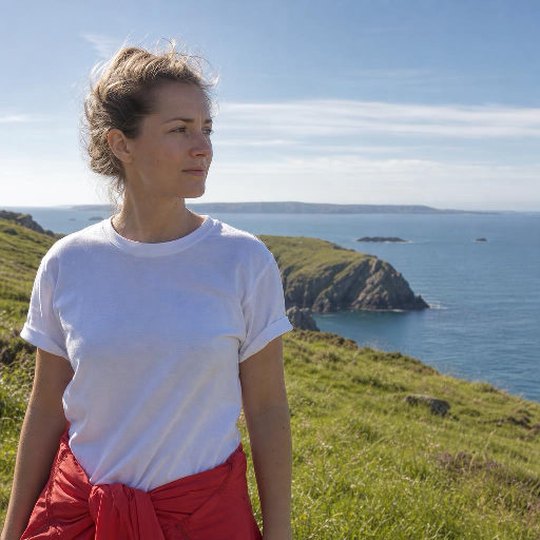
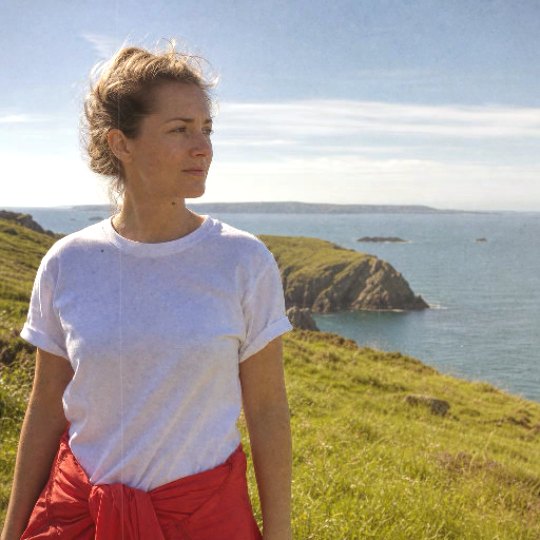
PRINTED BY THE APP'S OWN ON-DEVICE RECIPE · REFERENCE PHOTOGRAPH
06Price
First 30 free, then $19.99 once.
Your first 30 photos and videos come with everything unlocked. Then 3 films and 3 cameras stay free. 11 films and 23 cameras with PRO. No watermark, no ads.
$19.99 ONCE UNLOCKS EVERYTHING · $7.99 / MONTH ADDS CLOUD BACKUP · THE BATCH AND PRO MANUAL CONTROLS NEED PRO AFTER YOUR FIRST 30
Apple sources, read 9 October 2026
Questions
The short answers.
- Can I turn off HDR on iPhone?
- On iPhone 11 models, iPhone SE (2nd generation) and iPhone 12, yes: Settings, Camera, Smart HDR. Apple's page lists no switch for other models, where iPhone uses HDR automatically when it is most effective (Apple Support, checked 9 October 2026).
- Does iPhone have a built-in film filter?
- Photographic Styles change tone and color on supported models. On iPhone 18 Pro and iPhone 18 Pro Max, Apple's page also lists a Film texture and a Grain control. Other models do not have the grain option.
- Should I shoot ProRAW to get a film look?
- ProRAW gives more editing range. It does not add grain or color on its own. Apple says it combines RAW data with iPhone image processing, and Live Photos are unavailable while it is on.
- Does CAM135 turn off the iPhone's processing?
- No. It adds a film look on top. The one exception is PRO manual exposure at a shutter of 1/30 s or slower, where the app asks iOS to keep your exposure instead of fusing frames.
- Does it work on photos already on my iPhone?
- Yes: up to 20 still photos at a time, one film per batch, scaled to at most 2048 pixels, on the phone. Your first 30 photos and videos are free. After that the batch needs PRO, $19.99 once.
- Is it real film?
- No. It looks like film. It is not film.